

Google Ads Conversion Tracking: A Practical Setup Guide
Set up Google Ads Conversion Tracking with this practical guide. Learn GTM, GA4 imports, enhanced conversions, tag testing, and campaign optimization.
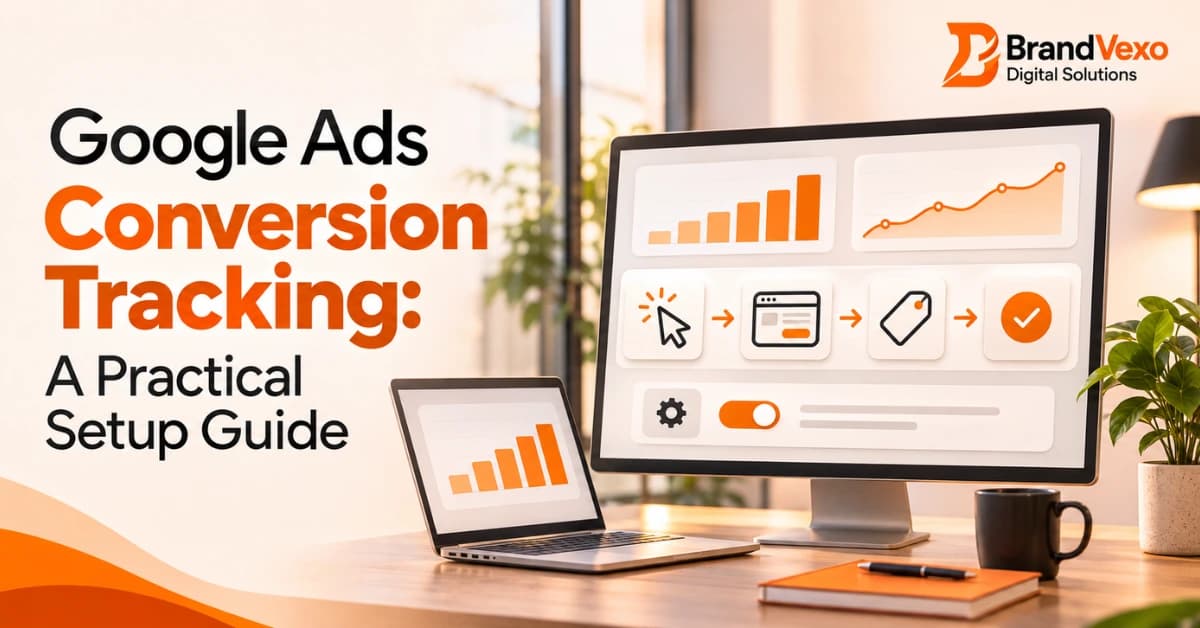
Accurate conversion tracking helps businesses understand whether their Google Ads campaigns generate real customers, qualified leads, and sales. Without proper tracking, advertisers may see clicks and website traffic but struggle to identify which campaigns actually contribute to business growth. Google Ads Conversion Tracking provides the data needed to measure these actions and make informed advertising decisions.
Setting up tracking involves more than adding a code snippet to a website. Businesses must create the right conversion actions, configure tracking tags, connect Google Analytics 4 (GA4) when needed, and test every important event.
What Is Google Ads Conversion Tracking and How Does It Work?
Google Ads Conversion Tracking is a measurement feature that records valuable actions people take after interacting with your advertisements. These actions help advertisers understand whether their campaigns achieve business objectives rather than simply generate clicks.
A conversion occurs when someone completes an action that matters to a business. For example, an online store may record a completed purchase, while a service company may track a submitted enquiry form or a phone call.
The basic conversion tracking process follows this sequence:
A person clicks a Google advertisement.
The person visits the advertiser's website.
The visitor completes a valuable action, such as submitting a form or purchasing a product.
The installed tracking tag records the conversion.
Google Ads uses the available conversion data for reporting and, when configured appropriately, bidding optimization.
Which Conversions Should You Track in Google Ads?
The right conversion actions depend on your business model and advertising goals.
Common examples include:
Online purchases: Completed transactions in an ecommerce store.
Lead form submissions: Contact requests, quote requests, and consultation enquiries.
Phone calls: Calls generated through advertisements or website visits.
Appointment bookings: Confirmed consultations, reservations, and service appointments.
Newsletter registrations: Successful subscriptions from interested visitors.
Downloads: Downloads of valuable resources, brochures, or product information.
For example, a UAE-based digital marketing agency may run Google Ads to generate business enquiries. Tracking successful consultation requests provides more useful information than counting every visitor who opens its contact page.
How to Set Up Conversion Tracking in Google Ads
Setting up conversion tracking starts with identifying the customer actions you want to measure. Once you understand your objectives, you can create conversion actions in Google Ads and implement the required tracking tags.
Step 1: Open the Conversion Goals Section
Sign in to your Google Ads account and open the Goals section. Navigate to Conversions and select Summary. From this area, you can review existing conversion actions, create new ones, and manage your measurement settings.
Choose the option to create a new conversion action and select the appropriate conversion source.
Step 2: Choose Your Conversion Source
Google Ads supports different conversion sources depending on the action you want to measure. For website-based conversions, select the website option. You can then configure tracking for purchases, lead submissions, and other important website activities.
Other measurement options include phone call conversions and eligible app-related conversions.
Choose the source that matches the customer action instead of creating unnecessary conversion events.
Step 3: Create a Google Ads Conversion Action
A Google Ads conversion action tells the platform which customer activity it should measure.
Configure the following settings:
Conversion name: Use a clear name, such as Completed Purchase or Contact Form Submission.
Category: Select the appropriate business outcome.
Value: Assign a fixed value or use dynamic transaction values where appropriate.
Count: Choose whether to count every conversion or one conversion per ad interaction.
Click-through conversion window: Set the period during which an eligible ad interaction can receive conversion credit.
Attribution model: Choose how Google Ads assigns credit to advertising interactions.
For example, an ecommerce business should generally count every valid purchase, while a lead generation company may prefer to count one lead per ad interaction.
Choose settings that reflect how your business measures success. Avoid assigning arbitrary values to actions that do not represent meaningful business outcomes.
Google Ads Conversion Tracking Methods: Which One Should You Use?
Google Ads supports different tracking methods depending on your website structure, conversion type, and measurement requirements. The three common approaches are direct Google tag implementation, Google Tag Manager, and thank you page URL tracking.
1. Google Tag Implementation (gtag.js)
The Google tag, also known as gtag.js, allows websites to send measurement information to Google Ads.
This method works well when developers can add tracking code directly to a website. After installing the main Google tag, you can configure event snippets to record specific actions, such as purchases and successful form submissions.
Use this approach when:
You have access to your website's source code.
You need direct Google Ads conversion measurement.
Your developer can manage tracking updates.
2. Google Tag Manager Conversion Tracking
Google Tag Manager (GTM) provides a central place to manage website tracking codes without manually editing website code every time you add or update a tag.
It uses tags, triggers, and variables to control when tracking events occur.
For Google Ads conversion tracking, you typically need:
Conversion ID: Identifies your Google Ads conversion tracking account or destination.
Conversion Label: Identifies the specific conversion action.
Trigger: Defines when the conversion tag should fire.
Conversion Linker: Helps preserve eligible advertising click information for conversion measurement.
This method is useful for businesses managing several conversion events, marketing platforms, and website interactions.
3. Thank You Page URL Tracking
Thank you page URL tracking records a conversion when someone reaches a confirmation page after completing an action.
For example, a visitor submits a contact form and lands on:
https://example.com/thank-you/
Google Ads can use this page view as a conversion signal when the tracking setup is configured correctly.
This approach works best when:
The confirmation page appears only after a successful submission.
The page has a unique URL.
The website does not trigger the conversion repeatedly for unrelated visits.
For more complex tracking, such as dynamic purchase values or transaction IDs, event-based implementation is generally more suitable.
Which method should you choose? Use direct Google tag implementation for straightforward setups, GTM for flexible event management, and URL-based tracking for simple confirmation-page conversions. Avoid installing multiple methods for the same action without a clear deduplication strategy.
How to Set Up Google Tag Manager Conversion Tracking
Google Tag Manager conversion tracking gives advertisers greater control over when Google Ads records customer actions. It is particularly useful for websites that track multiple forms, purchases, bookings, and other interactions.
Follow these steps to configure it.
Step 1: Create or Open Your GTM Container
Sign in to Google Tag Manager and select the container connected to your website. If you have not installed GTM, create an account and add the container code to your website according to Google's installation instructions.
Step 2: Create a Google Ads Conversion Tag
Open your GTM workspace and select Tags → New.
Choose Google Ads Conversion Tracking as the tag type. Next, enter the Conversion ID and Conversion Label from the relevant conversion action in your Google Ads account.
Step 3: Configure the Conversion Trigger
Choose the event that should activate your conversion tag.
For example, a lead generation website may use a successful form submission event. An ecommerce website may use a purchase event after the transaction completes.
Make sure the trigger records completed actions rather than simple button clicks that may not lead to successful submissions.
Step 4: Configure the Conversion Linker
Create a Conversion Linker tag where required and configure it to run on relevant landing pages, commonly using an All Pages trigger. The Conversion Linker helps preserve advertising click information using first-party storage so Google Ads can associate eligible conversions with advertising interactions.
If your GTM container already loads a Google tag or destination tag appropriately on every page, a separate Conversion Linker tag may not be necessary. Check your existing configuration before adding another one.
Step 5: Test and Publish Your Container
Use GTM Preview mode to test the tags and triggers. Complete a test form submission or purchase and check whether the correct conversion tag fires. Once everything works as expected, publish the container.
For additional technical guidance, refer to Google's official Google Ads conversion tracking instructions for Tag Manager.
Google Ads Enhanced Conversions Setup: Improve Measurement Accuracy
Enhanced Conversions help improve conversion measurement by supplementing existing tracking tags with eligible first-party customer information.
For example, an ecommerce website may collect a customer's email address during checkout. Enhanced Conversions can securely process eligible customer information using SHA-256 hashing and help Google match conversion activity with signed-in Google accounts.
This can improve conversion measurement when browser restrictions or other factors limit traditional measurement signals. However, Enhanced Conversions do not replace the need for a properly configured conversion event.
When Should Businesses Use Enhanced Conversions?
This feature can be useful for:
Ecommerce websites recording completed purchases.
Lead generation websites collecting customer contact details.
Businesses measuring online enquiries and bookings.
Advertisers who want to improve conversion matching.
How to Configure Enhanced Conversions
The general setup process includes:
Open conversion settings in Google Ads.
Locate the Enhanced Conversions settings.
Enable the feature and review Google's customer data terms.
Select an appropriate implementation method, such as the Google tag or Google Tag Manager.
Configure the collection of eligible first-party customer information.
Validate the implementation using Google's available diagnostics.
As of April 2026, Google has combined Enhanced Conversions for web and leads into a unified setting. The available implementation options and account settings may vary depending on your configuration.
Privacy consideration: Businesses must follow Google's customer data policies and applicable privacy and consent requirements. Only collect and transmit information when you have the necessary rights and permissions.
Read Google's official Enhanced Conversions setup guide for implementation details.
GA4 Conversion Import to Google Ads: How Does It Work?
Google Analytics 4 (GA4) helps businesses understand how visitors interact with their websites. Google Ads focuses on measuring advertising performance and supporting campaign optimization.
GA4 conversion import to Google Ads allows advertisers to use selected GA4 key events as conversion actions in their advertising accounts.
How to Import GA4 Conversions into Google Ads
Follow these general steps:
Open your GA4 property and Google Ads account.
Link both accounts if they are not already connected.
Enable the appropriate advertising data-sharing and personalization settings where applicable.
Identify the important events in GA4.
Mark the relevant events as key events.
Open Google Ads conversion settings.
Select the option to import eligible GA4 key events.
Review the imported conversion action and its settings.
For example, an online service business may record a successful enquiry submission as a GA4 key event and import it into Google Ads to evaluate advertising performance.
Should You Track Conversions via GA4 or Google Ads Native Tag?
Both methods can support conversion measurement, but they serve different purposes.
Google Ads native tag: Provides direct advertising conversion measurement and supports Google Ads bidding strategies.
GA4 import: Helps connect website analytics with advertising performance.
Combined approach: Offers broader measurement insights when both systems are configured correctly.
Avoid counting the same customer action twice as a primary bidding conversion. If you use both methods, review their attribution, counting, and bidding settings carefully.
Primary vs Secondary Conversion Actions: What's the Difference?
Google Ads allows advertisers to classify conversion actions as primary or secondary. This distinction determines how the platform uses conversion data for reporting and bidding. Primary conversion actions appear in the main Conversions reporting column and can guide Smart Bidding when the relevant conversion goal is included in campaign optimization.
Secondary conversion actions generally help advertisers observe additional customer activities without using those actions as direct bidding signals.
Which Conversion Actions Should Your Business Set as Primary?
Choose primary actions that represent meaningful business outcomes.
Examples include:
Completed ecommerce purchases.
Qualified lead submissions.
Confirmed consultation bookings.
Valuable customer enquiries.
Completed service registrations.
Use secondary actions for supporting interactions, such as:
Product page views.
Button clicks.
Brochure downloads.
Newsletter engagement.
General website interactions.
Practical example: An ecommerce store may set completed purchases as primary conversions and product-page views as secondary conversions. This helps its advertising campaigns focus on sales rather than simply attracting visitors.
Review your campaign-specific conversion goals regularly to ensure Google Ads optimizes for the actions that matter most to your business.
How to Test and Verify Google Ads Conversion Tracking
Testing is an essential part of every Google Ads conversion tracking setup. A tag may appear correctly installed but still fail to record the intended customer action.
Before launching a campaign, verify that each conversion tag fires under the correct conditions.
Steps to Verify Your Conversion Tracking Setup
Follow this testing process:
Open Google Tag Assistant.
Connect Tag Assistant to your website.
Open the page where the conversion should happen.
Complete a test action, such as submitting a form.
Check whether the correct Google Ads conversion tag fires.
Verify the Conversion ID and Conversion Label.
Review GTM Preview mode for trigger errors.
Check the conversion action status in Google Ads.
What Should You Check During Testing?
Pay attention to these important details:
Tag firing: Confirm that the correct tag activates after the intended action.
Trigger conditions: Make sure the trigger does not activate on unrelated page visits.
Conversion values: Check that the correct purchase amount or lead value reaches Google Ads.
Duplicate events: Confirm that one customer action does not generate multiple conversions.
Consent settings: Check whether your consent configuration allows the relevant tags to operate as intended.
Remember that a successful Tag Assistant test does not automatically mean Google Ads has completed its reporting verification. Allow time for the platform to process conversion activity and update its diagnostics.
Google provides additional instructions in its manual conversion setup and verification guide.
Google Ads Conversion Tracking Troubleshooting: Common Problems and Fixes
Even correctly planned tracking implementations can develop problems after website updates, tag changes, or modifications to conversion settings.
Understanding common errors helps advertisers identify the cause instead of repeatedly reinstalling tracking codes.
1. Conversion Tracking Status Shows Unverified
Possible reason: Google Ads has not detected the expected tag activity or completed its verification process.
How to fix it:
Check whether the Google tag is installed correctly.
Complete a test conversion.
Verify that the conversion event fires.
Review tag diagnostics in Google Ads.
Allow time for reporting updates.
2. Google Ads Conversion Tag Is Not Firing
Possible reason: The GTM trigger does not match the actual customer action, or the tag contains incorrect configuration details.
How to fix it:
Open GTM Preview mode.
Check the trigger conditions.
Verify the Conversion ID and Conversion Label.
Review JavaScript errors and consent settings.
Confirm that the correct event reaches GTM.
3. Conversions Are Not Showing in Google Ads
Possible reason: Reporting delays, incorrect date ranges, missing click information, or an incorrectly configured conversion event.
How to fix it:
Check the conversion action status.
Review the original ad interaction date.
Confirm that auto-tagging and click information are handled correctly.
Check the selected attribution and conversion window settings.
Verify whether the conversion was recorded in the source system.
4. Duplicate Conversions Appear in Reports
Possible reason: Multiple tags record the same customer action, or a confirmation page triggers repeatedly.
How to fix it:
Review all installed tracking tags.
Remove unnecessary duplicate implementations.
Use unique transaction IDs for ecommerce purchases.
Check whether GA4 imports and native Google Ads tags measure the same action.
Verify that form submissions fire only after successful completion.
5. Conversion Values Are Incorrect
Possible reason: Dynamic values, currency settings, or data layer variables are configured incorrectly.
How to fix it:
Check the purchase value sent to Google Ads.
Verify the currency code.
Review GTM variables.
Test different transaction amounts.
Confirm that each transaction has a unique identifier.
A regular tracking audit can prevent small implementation errors from affecting campaign decisions. It is particularly important after website redesigns, checkout changes, form updates, and marketing platform integrations.
How to Optimize Google Ads Campaigns Using Conversion Data
Once conversion tracking works correctly, businesses can use the collected information to improve advertising decisions.
Smart Bidding uses available conversion signals to adjust bids according to campaign goals. However, its effectiveness depends on the quality and relevance of the conversion data.
For example, a company that tracks every website visitor as a lead may encourage its campaigns to attract more low-value interactions. Tracking qualified enquiries instead gives the bidding strategy a more meaningful business objective.
Best Practices for Accurate Conversion Tracking
Follow these practices to maintain reliable measurement:
Prioritize valuable actions: Focus on completed purchases, qualified enquiries, and confirmed bookings.
Review conversion values: Assign realistic values that reflect business outcomes.
Check conversion windows: Choose settings that reflect your customers' buying journey.
Review attribution: Understand how the selected data-driven attribution model distributes conversion credit.
Monitor lead quality: Compare recorded leads with enquiries that actually become customers.
Audit tracking regularly: Test tags after website updates and changes to your marketing tools.
Use offline conversion tracking: Where supported, connect qualified leads and completed sales from your CRM with advertising interactions.
For example, a B2B company may receive 100 enquiries from Google Ads but convert only 12 into paying customers. Measuring those 12 sales alongside initial enquiries gives the business a more useful view of advertising performance.
Build a More Measurable Digital Marketing Strategy with BrandVexo
At BrandVexo, we help businesses build practical digital growth systems that connect paid advertising, SEO, website development, and marketing automation. Our approach focuses on measurable performance rather than vanity metrics. We help businesses improve their online visibility, generate qualified leads, and create better customer journeys. Whether you need support with Google Ads, conversion tracking, or a broader digital marketing strategy, our team can help you identify the right opportunities for growth.
Contact BrandVexo:
Phone: +971 52 356 5409
Email: info@brandvexo.com
Website: www.brandvexo.com
Explore our Paid Ads services to understand how a structured advertising strategy can support your business goals.
FAQs
Why Is My Google Ads Conversion Tracking Status Unverified?
Google Ads may show an unverified status when it has not detected the expected conversion tag activity. Check whether the Google tag is installed, the correct trigger fires, and the conversion event is configured properly. Complete a test conversion and review the tag diagnostics. Reporting and verification updates may take time.
What Is the Difference Between Primary and Secondary Conversion Goals?
Primary conversion actions appear in the main Conversions reporting column and can guide Smart Bidding when included in the campaign's bidding goals. Secondary conversion actions generally provide additional measurement information without directly influencing bidding. Businesses should prioritize meaningful sales and qualified leads rather than low-value website interactions.
Should I Track Conversions via GA4 or Google Ads Native Tag?
Google Ads native tags provide direct advertising conversion measurement, while GA4 imports connect website analytics events with Google Ads. Both approaches can complement each other. However, advertisers should carefully configure conversion actions, attribution settings, and bidding goals to avoid duplicate measurement of the same customer activity.
How Long Does It Take for Google Ads Conversions to Show Up?
Conversion reporting does not always update immediately. Processing time depends on the conversion source, implementation, and reporting process. Imported GA4 conversions can take up to 24 hours to appear in Google Ads. Check the conversion action status, date range, and tracking diagnostics before assuming the setup has failed.
How to Fix Google Ads Conversion Tag Not Firing?
Start by opening Google Tag Manager Preview mode and checking whether the correct trigger activates. Verify the Conversion ID, Conversion Label, tag configuration, and Conversion Linker setup where required. Use Google Tag Assistant to identify errors and test the conversion again after correcting the implementation.
Conclusion
Google Ads Conversion Tracking helps businesses understand which advertising activities generate meaningful results. From creating conversion actions and configuring Google Tag Manager to implementing Enhanced Conversions and testing tags, every step contributes to more reliable measurement.
Businesses should regularly review their tracking setup, monitor lead quality, and optimize campaigns using accurate conversion data. A well-maintained system helps reduce wasted advertising spend and supports better marketing decisions.
Disclaimer: This article is for informational and educational purposes only. Google Ads features, settings, and tracking requirements may change over time. Always consult Google's official documentation and verify your conversion tracking setup before making advertising decisions.
Free growth plan
Ready to grow your business?
Reading is a start — now let's build it. Tell us where you want to grow and a senior strategist will map the fastest, most profitable way to get there. Free, no obligation.
Discussion
Join the conversation
Be the first to comment. Comments are reviewed before they appear, so yours won't show up instantly — but we read every one.
Leave a comment
Keep reading
All articles
PPC Audit Checklist: Find Wasted Spend and Fix It
Use this PPC Audit Checklist to find wasted ad spend, review Google Ads performance, fix targeting issues, and improve PPC optimization.
Google Ads Dubai: Costs, Strategy and Agency Options
Explore Google Ads Dubai costs, PPC strategy, budgeting, tracking, and agency options to build campaigns that attract qualified leads and sales.

Retargeting Strategy: How to Win Back High-Intent Visitors
Build a smarter Retargeting Strategy with practical tips for remarketing, Meta retargeting, Google remarketing, funnel targeting, and conversions.